2013 is history and 2014 is here. Technology news will start to up here again very soon as the new year gets underway. In the meantime did you ever wonder about IP addresses and wanted to learn more about them? Well lets take this slow tech news moment to delve into the basics of IP addressing.
IP Addresses are critical to how our computers and mobile devices communicate.
IP addresses are unique sets of numbers assigned to devices that connect to a network. These sets of numbers are used to send and receive information on the network and to find other devices. An IP address is very much like a home address that others use to send you physical mail and for you to send mail from. Very simply IP addresses are unique identifiers of your location.
While your home or small business router usually handles all IP address assignments via a DHCP (Dynamic Host Control Protocol) server within the router's software, there are organizations that officially manage and allocate blocks of IP addresses for companies and organizations, just like we do at the Borough of West Chester's local area network (LAN). IANA (Internet Assigned Number Authority) handles IP addresses allocated globally, typically to Regional Internet Registries. In the Unites States, IP address allocation is managed by ARIN (American Registry for Internet Numbers).
To see what I am talking about check this out and follow along. Be warned - this is very exciting.
IP addresses are represented as a set of dotted decimal numbers. Check it out for yourself and click on the Start button. In the "Search" or "Run" field type in CMD. At the command prompt (which is the C:\>) Type in ipconfig /all followed by the Enter key.
You will see a screen that looks just like the one below (although you may see different numbers) and the yellow highlighted box is merely for this article:
Look at the area in the yellow box. Look for the line IPv4 address. You will see the numbers 192.168.1.4. This is the IP address that my wireless router is assigning to my computer which is connected wirelessly to the router.
This address is used by every other device I have connected on my home network to communicate with my computer.
Look back at the image above. You will see a line that shows my subnet mask is 255.255.255.0.
What does this mean?
Subnets divide networks into groups. You may want to create different groups within a network for giving different users access to different resources, for performance optimization, or for security reasons. Subnet masks tell other devices if a specific device is on a local or remote network, to efficiently route packets.
Another glance back at the image and you will see my gateway address is 192.168.1.1. In most small business and home networks, the gateway address is typically the IP address assigned to the router. The gateway acts almost like a traffic cop, managing the flow of traffic between the Internet and the LAN.
You can learn more about IP Addressing here.
Showing posts with label tips. Show all posts
Thursday, January 2, 2014
Wednesday, December 18, 2013
Shopping with HTTPS
Being that it is the holiday season and if you are reading this fine tech blog you have no doubt shopped online, and chances are you have probably noticed, or been told to look for, certain indicators that you have a secure Web connection.
For many years, the primary indicator was a padlock at the bottom of your browser screen. Now, the padlock is likely to be found in the address bar up top. Sometimes the address bar itself will turn a different color (usually green) when you enter a secure website.
The "http" prefix on the website, if it's visible, will change to "https" The "s" stands for "secure."
Learning to read these browser indicators is an important way to avoid becoming a victim of cybercriminals.
What is HTTPS Anyway?
Hypertext Transfer Protocol Secure (https) is a communications protocol for secure communication over a computer network, with wide adoption on the Internet. This security level is the result of layering the Hypertext Transfer Protocol (HTTP) on top of the SSL/TLS protocol, which adds the security capabilities of SSL/TLS to standard HTTP communications.
If you do not see that a site is using the HTTPS protocol always avoid providing any personal or financial information.
Wednesday, November 27, 2013
How To back out of IE11
During the past week or 2 Microsoft has added Internet Explorer 11 to it's list of "critical updates" which can be a real problem for many of us. Many of the internet sites we visit such as banks and other important service providers simply are not ready for Microsoft's newest browser, and Microsoft should know this. Unfortunately IE 11 (Internet Explorer) was unwisely (if you ask me) added to the most resent critical update list. This means anyone who has critical updates setup to automatically download & install is "rewarded" with the newest internet browser.
Now don't get me wrong IE 11 has some great new features such as the new Developer Tools, better standards support and better HTML 5 video among other security improvements.
If you find, that after this update occurs IE crashes and does not behave normally or that some of the sites you regularly visit start misbehaving you should downgrade IE 11 to IE 10 or IE 9.
To do this open the "Control Panel" and "Programs and Features". Then click "View Installed Updates" on the left panel. Be patient as this can take a few moments to load all the updates. Under "Microsoft Windows" select "Internet Explorer 11" and uninstall it.
Once you have completed this you will be asked to reboot the PC. Do this and log back into Windows. Internet Explorer will revert back to either IE9 or IE10, depending on which one you were using at the time of the upgrade.
At some point down the road, hopefully soon, IE 11 will work fine with just about everything we use, but for now, many of us will experience problems with the new browser and downgrading it is really the only solution.
![]() |
| Not So fast Microsoft! |
Now don't get me wrong IE 11 has some great new features such as the new Developer Tools, better standards support and better HTML 5 video among other security improvements.
If you find, that after this update occurs IE crashes and does not behave normally or that some of the sites you regularly visit start misbehaving you should downgrade IE 11 to IE 10 or IE 9.
To do this open the "Control Panel" and "Programs and Features". Then click "View Installed Updates" on the left panel. Be patient as this can take a few moments to load all the updates. Under "Microsoft Windows" select "Internet Explorer 11" and uninstall it.
Once you have completed this you will be asked to reboot the PC. Do this and log back into Windows. Internet Explorer will revert back to either IE9 or IE10, depending on which one you were using at the time of the upgrade.
At some point down the road, hopefully soon, IE 11 will work fine with just about everything we use, but for now, many of us will experience problems with the new browser and downgrading it is really the only solution.
Tuesday, October 15, 2013
What is a TROJAN and Where Did It Come From?
The term Trojan refers to the wooden horse used by the Greeks to sneak inside the city of Troy and capture it. The classic definition of a Trojan is a program that poses as legitimate software but when launched will do something harmful. Trojans can't spread by themselves, which is what distinguishes them from viruses and worms.
Today, Trojans are typically installed secretly and deliver their malicious payload without your knowledge. Much of today’s crimeware is comprised of different types of Trojans, all of which are purpose-built to carry out a specific malicious function. The most common are Backdoor Trojans (often they include a keylogger), Trojan Spies, password stealing Trojans and Trojan Proxies that convert your computer into a spam distribution machine.
Tuesday, October 1, 2013
Internet Security Tips
Internet Security Tips:
We all know that the internet is not a safe place anymore. Personal internet security should be taken seriously because your personal details, emails, messages and financial information can be exposed if the information ends up in the wrong place.A regular thread of this technology blog is trying to regularly remind our readers to take computer technology seriously. So with this is mind here are some ideas to follow:
1) Install an Antivirus with Internet Security Protection
It’s a wise decision to install an antivirus which provides internet security features. It’s the first option to do if you do not have one installed on your PC.
2) Setup Two Factor Authentication
Protecting our social media and email accounts online should bee our first priority. Most of these sites offer two factor authentication now. So it’s a good idea to switch for this new security feature. After activating this new feature, you can login only after entering the code sent to your email or Mobile. So it’s far more safe than the normal login process.
I will post an article shortly on two factor authentication.
3) Use unique, lengthy and mixed and different passwords
Always use unique, lengthy passwords mixed with upper and lower case letters, numbers, symbols etc. and also use different password for different sites.4) Use alternate email id for Password recovery
Some times you may forget your password and go for the “Forgot my Password” option to reset your password. The link to reset password is sent your primary email of the account. Imagine that a hacker already hacked your primary email account and he used the “forgot my password” to generate a reset password link to get hold of your facebook or twitter account. It is far better to setup and use an alternate email as your password recovery email address.5) Never click on suspicious or spam links
Never - ever click on suspicious email messages or "spam links". Very simply - only respond to email messages or click on "links" if you are 100% certain that the message or link is legitimate.Friday, September 27, 2013
It's Easy To Protect Your Data!
Another slow technology week, other then Apple's new (but kinda the same) iPhone and Microsoft's new (but kinda the same) Surface tablets have me revisiting the importance of securing your data and providing some easy steps for accomplishing it.
Computers today almost always store more than just files. We use our computers, laptops and tablets to store our photos, music, videos and much more. With everything being stored on our computers, it is no wonder that we all want to make sure that our data is fully protected from all eventualities.
Remember that you can always reinstall any programs orsoftware but your data could be lost forever. I have been asked countless times to "please just save my pictures" when someone's computer has "crashed". There are many ways that you can protect your data from being lost, as well as being compromised by people who do not have access.
Below are 5 useful steps you can take to protect your data.
By following these handy steps you can protect your data and it will be less likely to be exposed to the wrong people.
Computers today almost always store more than just files. We use our computers, laptops and tablets to store our photos, music, videos and much more. With everything being stored on our computers, it is no wonder that we all want to make sure that our data is fully protected from all eventualities.
Remember that you can always reinstall any programs or
Below are 5 useful steps you can take to protect your data.
- Backing Up – Using an external device to back your files up with is a great way of protecting them. You can use discs, USB sticks or even an external hard drive to copy all of your data to. If this is done on a regular basis then if anything should happen to your PC or tablet you will always have a full back up of your data that can be loaded back onto any device.
- Security & Anti Virus Software – Antivirus software or security is paramount to protecting your data. Your data is under constant threat from hackers and viruses. In order to help protect your data it is advisable to install some kind of antivirus software or security. This software will repair any attacks on your data and alert you to any threats including suspicious and dangerous websites.
- Passwords – If you have data on your
laptop or PC that needs to be kept private and never shared then you should protect that data with a password or security key that only you know. You can also zip files to protect them from being opened. Never share any passwords with anyone because you never know who may store that password. - Internet Protocol Security – Internet protocol security or IP security as it is also known is vital if you are sending private or important data over the web as this is when it can be most easily hacked.
- Secure Networks – Always ensure that any network that you may use is a secure one. Unsecured networks put your data at risk as anyone maybe able to access the data on your laptop and PC and share that data. Never use a network where you don’t have to enter a pass key or security key.
By following these handy steps you can protect your data and it will be less likely to be exposed to the wrong people.
Monday, August 19, 2013
Word Tip: Clear That Format
Many times when you copy text from another source (document, webpage etc), the formatting of that particular text never comes out the way you want it to. This happens because the copy command basically copies not only the text but also the various formatting done to the text (bold, underline, font size, hyperlinks etc).
However, the formatting can easily be removed with a single click in a Word document. Microsoft Word’s latest 2013 version and all previous versions provide a very simple way to remove formatting on a selected text.
"Clear Formatting" is Only a Button Away
To remove formatting, select the text you want the formatting to be done on and hit the ‘Clear Formatting’ button on the top navigation bar. This will convert the selected text to its original unformatted form.
Shortcuts for "Clear Formatting"
And there’s an even faster way to remove formatting, with the help of shortcut keys. Simply select the part of the text you want formatted, and press CTRL + Spacebar to remove all character formatting (font size, font styles, colors etc) and CTRL + Q to remove all paragraph formatting (text alignment, bullets, numbering etc).
Wednesday, August 14, 2013
Improving Your PC Posture
It's not a shock to learn that many people who sit in front of their PC as part of their employment are frequently uncomfortable. Microsoft recently decided to conduct a survey of 10 US markets to find out more about this office workplace issue. The survey results show that 85 percent of them experience some kind of physical discomfort while working at their job. Issues with the neck are reported most at 39 percent, followed by the shoulders at 33 percent and the wrists at 28 percent.
It's no wonder that employees have such issues. The same survey shows that 70 percent of US workers use a desktop PC, and that they spend an average time of seven hours working at their desk. Despite this amount of discomfort, the survey shows that only 24 percent of US PC users have an ergonomic keyboard while only 29 percent own an ergonomic mouse.
Many workers like emergency services communication officers often work with several desktop computers for 12 hours at a time. Weeks, months and years of this type of activity can surely begin to cause physical health concerns if they are not addressed as soon as possible and on a regular basis.
Some suggestions to keep yourself in shape while working is to keep the PC monitor at arm's length on a desk, keep your wrists in a straight line with the forearm and having the top of the monitor leveled with your eyes.
You can learn more about Microsoft's survey here.
Friday, August 2, 2013
Taming Your Email
It's a rare computer user who isn't constantly battling email overload. Does that describe you -- or someone you know? Never fear. You're not alone, and there are steps you can take to tame the electronic avalanche and regain control of your computing life.
Step 1: Shut down your in-box.
Step 2: Unsubscribe -- again and again. Turning it all into a game can't hurt, either.
Email has been around since before the Internet, but while the technology itself hasn't changed much since the 1970s, the volume of it has. Some people, in fact, receive hundreds of messages a day. That's a threat to a human's ability to process information.
Step 1
Shut down your in-box if you find emails are distracting you from productive work. You can still be alerted to important messages through an SMS text message.
Set up a "from-based" filter within your email client, such as Gmail, to forward important emails to your phone's text account. That way, you'll see the initial 140 characters on the phone as the message comes in and know that you need to open your email client to address the email. Yet you won't get distracted routinely by less important email.
Step 2
Hit the Unsubscribe link embedded in legitimate mass emails and then delete the email without reading it. Gradually your daily volume will decrease -- some of those lists are bombarding you frequently.
Step 3
Use a burner email address.
Unfortunately, marketers looking for prospects to harass have wised-up to the use of completely fabricated email addresses when signing up for services, and won't let you register for services without a legitimate email.
Burner email addresses are disposable addresses that let you sign up for services and click on the verify link in the sent email; the addresses then vaporize after a predetermined period, like an hour. Guerrillamail.com is one such Web-based solution.
Step 4
Look for newsletter marketing preferences options whenever you give out your email in a Web-based form and uncheck the boxes.
Step 5
Take advantage of triaging tricks offered by email services.
Clients like Outlook let you set up hierarchical folders. Add project folders with action and archive subfolders, then drag-and-drop from the in-box as emails come in, for example. Then deal with the email on a project-by-project basis rather than a hit-and-miss chronological one.
Alternatively, use filters to send messages to the project folder, then address the email content as you work on that particular project.
Look for category options within email clients and take advantage of them. Gmail's newest client on some Android 4.0+, iPhone and iPad devices, for example, lets you categorize by people you actually know. Look for the new Primary tab there.
Step 6
Try some email management software.
Boomerang, a plugin for Gmail, lets you set up reminders if no one replies to your message, so you don't have to retain tickle items in your in-box.
ActiveInBox, a Gmail extension for Chrome or Firefox, creates professional status and prioritization project management-like elements within Gmail.
Step 7
Turn the whole process into one big game with The Email Game. This Gmail- and Google Apps-compatible game gives you a score. The faster you clear your in-box, the more points you get.
Tuesday, June 25, 2013
Summertime Tech Advice
Summertime has finally arrived and that usually means many of us are headed to the shore for some rest and relaxation. Unfortunately our mobile devices usually tag along. If this is true in your case be sure to take care with your mobile devices as they are even more susceptible to the summer's unique weather conditions then you are.
Avoid "Heat-Related Death"
Extremely warm (and hot) temperatures have noticeable effects on your phone's battery, display and the parts inside your phone. There's even a possibility of the ominously named "heat-related death," which is exactly as horrible as it sounds. The best way to protect your tech is to keep it in the shade. If you do find that your phone has overheated in the sun, don't panic and let it cool gradually. Do not put it in the refrigerator or freezer. Let it cool down on it's own, and out of the sun.
Use a cooling pad when you're working on a laptop outdoors, even if you don’t use one at home. Increased temperatures mean even new laptops could easily overheat in the summer sun. Also take the time to clean your laptop fan before heading into the sun. This will help to ensure that it is running properly and keeping your laptop cooler. Of course the best protection is to keep it in the shade.
Use "Protection"
Another concern is water damage. While your smartphone case protects against damage from dropping your phone, it will do little to protect your phone from damage caused by liquid, dust or sand. If you want to tote your cell to the shore, you’ll need a little something extra like a waterproof case. You can find these online easily. I found dozens of these cases at Amazon.com.
Friday, June 14, 2013
Securing Your Mobile Devices
Our mobile devices (smartphones and tablets) are becoming a bigger and more important part of our daily lives everyday. Because of this security concerns are growing and becoming more complex as well. I have written about this before and I am sure I will again as security concerns continue to impact how we use these devices.
The threat to our mobile devices is especially challenging because our smartphones are always connected, and they carry personal data, as well as being equipped with cameras, microphones, and positioning device. Because there are many built-in devices options their operating systems and apps complex. All of this adds up to increasing the way that cybercriminals can take advantage of any security holes.
Here are some things you can do to protect yourself in respect to your mobile devices.
Be careful when “checking in” on social sites: This is one of my personal weaknesses. I love to check in so that my friends can know what I am going. This is because Facebook, FourSquare and other geo-location programs are fun and sometimes you can score some deals for “checking in” at locations. However you should to be cautious of letting people know where you are – especially if you’re away from home.
Don’t remember your passwords: Don’t set user name and passwords to be remembered in your mobile browser or in apps and make sure you always log out of accounts when you access them.
Be careful what you share: Yes it’s fine to stay in touch with our friends and family via social networks, but be careful what you share. Even if your privacy settings are set to only let your friends see the information, it’s best to take the approach that once something is online, it lives forever. Think if you’re really ok with your grandmother or boss to see that update, picture or video.
Don’t text or email personal information: While this might seem pretty basic, we may find we need to share credit card numbers or personal details with another person. But this should be done via a secure site or app or use your mobile’s other function (the phone itself - voice call). Emails and texts can be intercepted and then your information can fall into the wrong hands.
Always remember that legitimate organizations like banks will not ask you to text personal details!
Turn off your Bluetooth: If you’re not using this connection, it’s best to turn it off. Not only will this help save your battery life, but it prevents hackers from accessing your device through this technology.
Monday, June 10, 2013
Don't Let Social Media Ruin TV & Film
As you know - if you are a dedicated reader that is, I really enjoyed the new Star Trek movie. In fact I mentioned that there were at least 3 real surprises to me during the movie. I had to work really hard to keep myself sheltered from Trek news and movie spoilers for almost an entire year. This was a very difficult task, considering how connected we are all and that everything these days can appear on twitter and Facebook seconds after it has occurred.
My efforts to remain in the dark (pun intended), for "Star Trek Into Darkness" got me thinking about how social media can serious hurt our enjoyment of TV & film.
For example last night HBO aired the season finale of Game of Thrones which resulted in millions of tweeters obviously saying, “Finally! We can talk about this massive event!”
Except not everyone watched the show when it aired. And in the fine tradition those with DVR's or with subscriptions to HBO GO took to social media last night to beseech their friends, acquaintances, or random people on their Twitter feed to please, please, please not talk about the show. And in another fine Internet tradition, people immediately took exception to being told what to do online and began arguing about it.
Riveting television shows, divergent TV viewing schedules, and Internet “discussions” dominated by people who can’t go to bed because someone is wrong are not going to go away. But you don’t have to be sucked into the madness, or suffer spoilers on your favorite TV shows.
Read on for some suggestions on how to avoid the spoiler aspects of social media.
On average spoilers last about one week for movies, and considerably less for TV. What this means is that spoilers will appear on social medial sites very quickly once the TV show or movie has aired. The tweeting for a new movie can go on for a week after premiering and a day or so after a TV episode has aired.
The best way to avoid spoilers on social media is to forsake the social dimension of watching TV, and go offline until you’ve had a chance to catch up. I know this is difficult but it can pay off especially for shows like Game of Thrones & Mad Men.
However, sometimes your job requires you to check in regularly on social media or you just can't help yourself. Even then, the responsibility is still on you to filter out or screen content that you don’t want to see. You can do this by unfollowing people on Facebook or Twitter, hiding people on Facebook, sorting your Twitter feed into lists of people talking about pop culture versus those who don’t, or hiding tweets based on hashtags. Third-party Twitter applications will usually let you create filters that block out specific hashtags.
If all this seems like a lot of work simply do what I did with "Star Trek into Darkness". Whenever you stumble upon comments regarding the episodes of shows you have not watched, stop, don't read the post and move on quickly. This self control can be difficult I admit but it is the most sure way to not spoil your favorite TV shows or upcoming movies.
Finally you must accept the new spoiler situation. Know that filtering by hashtag or blocking streams only works if other people are playing by the rules—and, as we all know, enforcing any rules online is a loser’s bet. Also accept that you will get hit by stray spoilers in any social media space. So find something else to read if the comments are discussing a TV show or movie you have not seen yet.
Tuesday, June 4, 2013
Facebook and Batteries Do Not Mix
Are you having problems with the battery on your smartphone dying sooner then you think it should?
If that’s the case, the Facebook app could be the cause. In most cases your Facebook app is never truly going to sleep and then terminating like a good app. As a result, it’s using up CPU time, and a lot of your battery.
Facebook is able to do this because it meets the criteria for two types of apps that Apple allows to run in the background: audio apps and voice over IP apps. Facebook apps are operating under these two backgrounding apps privileges, and, as such, are actively chewing up your battery time.
With any luck a fix will be released soon. Until then, there are only two options.
You can delete the Facebook apps from your iPhone or iPad, and then just use the web version of Facebook, or you can force-quit the app when you’re not using it by double clicking the home button, tapping and holding the Facebook icon in the multitasking bar, and then tapping the little red minus icon. This turns off Facebook completely, until you launch it again.
Facebook can eat up battery life on any smartphone, not just Apple devices. When you have notifications turned on, the app is always reaching out and looking for posts, comments, messages etc. This takes up valuable battery life. Unless your really need to receive Facebook activity immediately on your smartphone I reccomend turning notifications off. You can usually do this in the settings area of your Facebook app for Android, Windows and Blackberry devices.
Wednesday, May 29, 2013
Virus 101
What is a Computer Virus?
Your sympoms in these cases will include a very slow running computer and various program errors or pop-up messages.
You may ask yourself, “Why would anyone want to do that?” Well if you are a bad guy triggering a an army of computers to visit a single website multiple times per second he can easily bring down entire websites just from the sheer number of connections. If you are a true “bad guy” this cause and effect is exactly what you desire.
Then there is the malware that appears to be an antivirus that will (for a small fee) gladly remove all of the nasty programs that it itself installed. This one is very popular and I have been asked to clean computers because of this hundreds of times. This is important - so pay attention. Never ever pay anything when prompted by one of these malware programs. That’s because once you pay, they will ask for more, and more and more to squeeze as much money as possible out of you with no intention of ever fixing the problem!
The problem with most malware is that the moment it runs on your computer, it will disable almost all of your protection which makes identifying it incredibly difficult.
So here are 4 easy tips for identifying malware on your computer:
Most infections take place on Windows machines, and even though
many people think that Macs are immune to infections, they are not! Yes, Macs
do a better job in the infection department and although you may not have to be
as concerned about catching a bug as a Windows user, it’s always good to know
what infections are and how they can put your data in jeopardy.
So what types of malware can your computer get? Well, just like
diseases a person can catch, the list is a long one that can be broken up into
categories. That is because each infection can have a unique strain or method
of infection. Here are the 3 most common types of computer virus:
Backdoors - This type of
malware creates a software hole in the computer which creates a sort of open
door policy allowing an attacker to run anything they want on your computer
without being stopped by your computer’s defenses.
Trojans - These types of
infections act just as their name predicts. A seemingly harmless file when run
unleashes nasty code that tears down your computer’s defenses from the ground
up.
Rootkits – These are the
worst infections out there. Not only does this malware infect your computer,
but it fights back! If the infection gets stopped, a rootkit can restart
itself, copy itself or even move itself. These are masters in the art of
concealment, and often make removal next to impossible. Many times the only
course of action is a complete format of the hard drive.
Generally, malware that infects your system combines any of the
above 3 elements for specific purposes. For example, some malware installs a
program called a keylogger, which records everything you type hoping to catch
credit card numbers and personal information which could then be later sold and
used against you.
Sometimes malware stays quiet on your computer until the attacker
wants to activate it. Generally, the attacker will wait until he has infected a
few hundred thousand computers, and then he essentially has enlisted your
computer in an army of other infected computers without you even being aware! Your sympoms in these cases will include a very slow running computer and various program errors or pop-up messages.
You may ask yourself, “Why would anyone want to do that?” Well if you are a bad guy triggering a an army of computers to visit a single website multiple times per second he can easily bring down entire websites just from the sheer number of connections. If you are a true “bad guy” this cause and effect is exactly what you desire.
Then there is the malware that appears to be an antivirus that will (for a small fee) gladly remove all of the nasty programs that it itself installed. This one is very popular and I have been asked to clean computers because of this hundreds of times. This is important - so pay attention. Never ever pay anything when prompted by one of these malware programs. That’s because once you pay, they will ask for more, and more and more to squeeze as much money as possible out of you with no intention of ever fixing the problem!
The problem with most malware is that the moment it runs on your computer, it will disable almost all of your protection which makes identifying it incredibly difficult.
So here are 4 easy tips for identifying malware on your computer:
- If a message pops up on tour screen asking for personal information - do not provide it.
- If your computr has been infected bya computer virus, shut it down without delay.
- Do not troubleshoot the problem with the infected computer.
- If you are unable to remove the virus yourself, contact a technology professional.
Thursday, May 2, 2013
Boost Your Wireless Signal
I recently noticed a big decrease
in my wireless signal strength at home recently. It seemed that only last
summer I could sit out in my back yard, removed from society for a few moments
and able to stream my favorite music on my wireless network. Well this spring
the signal had really degraded and I had some work to do. I was able to
increase my signal strength.
But how?
It is important to know that these days, there are more demands on wireless networks than ever.
With the influx of mobile phones, tablets and laptops, fewer devices are tethered to network cables, especially at home. But as we all know, the strength of wireless signals can vary greatly.
Here are several ways you can help boost wireless access and speeds across your home or office.
Location, Location Location - Make sure that your access point is in a central location to all the users who will need wireless access. Your basement is almost always the very worst place.
Material's Matter - Keep the router away from metal objects. The can interfer with the signal.
Use the Antenna - The antenna that came on the router? Yes. It actuall works. Find the position that works best for reaching user's devices. If you are still having issues try upgrading to a new antenna. This is cheaper than purchasing a new router.
Avoid Overload - Check to see how many devices are connect on your wireless network from time to time. Add more routers or access points if it gets to crowded.
Upgrade Regulary - The signal is only as strong and secure as the firmware behind it. Make sure you keep it up to date.
Changing Channels - Your router broadcasts on "channels". You can change these as well if your are troubleshooting.
But how?
It is important to know that these days, there are more demands on wireless networks than ever.
With the influx of mobile phones, tablets and laptops, fewer devices are tethered to network cables, especially at home. But as we all know, the strength of wireless signals can vary greatly.
Here are several ways you can help boost wireless access and speeds across your home or office.
Thursday, April 25, 2013
Creating ISO Images
Ok - so in the previous article we talked about some ways you can live without a physical optical drive in your new computer. However there are still some tasks that require a little trickery on your part. This is an example of when a human being must out think a mere computer. What do you do if the task you are trying to accomplish, such as installing an application wants a real - honest to goodness disc?
The Solution is Creating ISO Images
You might think that software on a disc could be copied straight away. The disc contains the software, right?
The Solution is Creating ISO Images
You might think that software on a disc could be copied straight away. The disc contains the software, right?
Not exactly. Discs contain an installer, which isn’t the
same as the software itself. To make matters even worse, some software installed from a disc will
need the disc inserted to function. That will be a problem if the software is
installed on a PC with no optical drive.
The solution is known as a disc image (or .ISO) file. It’s a
single file containing everything that was on a disc and packed up so that it
acts exactly like a disc when opened by the appropriate software.
Windows doesn’t have the ability to make and use .ISO files
on its own, so you’ll need to download third-party software. There are some
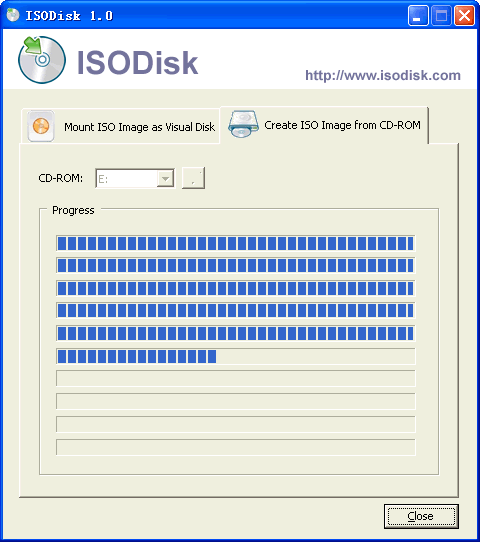
great free options available like ISODisk (to create .ISO files) and VirtualCloneDrive (to mount them). These utilities will help you make the .ISO and
then mount it into a “virtual drive,” which tricks your computer into thinking
the .ISO file is a disc in an optical drive.
![]() |
| Screenshot of ISODisk in action. |
You’ll also need to use .ISO if you want to reinstall
Windows. You can do this by using one of the above tools to make an .ISO of
your Windows install disc, and then, using the Windows 7 USB/DVD Download Tool,
mount that file on a USB drive. Note that you must use the tool; simply
dragging the .ISO file into the USB drive’s storage won’t work.
A Note about Storage
Space
When you buy a new computer that lacks a disc drive you are
forcing all of your data to your computer’s hard disk. This may or may not be a
problem, depending on the size of your existing media and software collection.
An average Ultrabook on sale today comes with a 500GB hard
drive. That’s a lot of space, but it can also go quickly. A drive of this size
can handle just 60 uncompressed DVDs. Think about the size of your physical
media collection and whether you want to rip all of it, or just some. An
external hard drive will be necessary if your collection is large, and that
adds another $60 to $180 (depending on capacity) to your tab.
Some computers come with small, fast solid-state drives.
These score well in our reviews because of their incredible performance, but
are hampered by limited capacity. If you purchase a new PC with such a drive,
you should plan on also buying an external optical drive, an external hard
drive, or both.
Conclusion
Ditching the optical drive is not for everyone. Consumers
who don’t have and can’t access fast Internet will find them annoying, and
budget buyers will find the necessary extras – like an external hard drive –
irritating.
There are many advantages to going digital, but don’t forget
the disadvantages. It’s important to not feel pressured to move away from discs
because they’re considered outdated. Ditching the disc has hidden costs and can
take more effort than some users find worthwhile.
Wednesday, April 17, 2013
Contacting Loved Ones in Times of Tragedy
Monday's tragedy got me thinking about different ways to contact our loved ones and friends during times like the one our country just went through in Boston. I especially thought about this when I was watching TV coverage of the event and and the reporters were reporting that the cellular network in the Boston area had been shut down.
Disasters often strike without
warning–and if you have loved ones in harm’s way, you’re going to want to get in
touch with them. During tragedy’s like the one in Boston cell signals and land
lines can be jammed with the massive amount of calls flowing in and out of an
area. In addition just like on Monday officials may have the cellular service
shut down.
![]() |
| When tragedy strikes - just like in Boston we reach out to our smartphones. |
One of the advantageous of social media
and smartphones is that there are more ways then ever before to communicate,
outside of talking on the phone. Here are a couple of options for trying to
reach out to others when disaster strikes.
1.
First -Do not call! Leave the lines open for first responders.
2.
Text. Using text messages rather than voice calls helps
to prevent network congestion. It requires a lot less data from the wireless networks
as compared to voice.
3.
Use Apps. While cell networks and phone lines are generally limited
to one communication protocol, apps like Twitter and Facebook
Messenger can reach out in many different ways.
If
you are the one in harm's way - what should you do?
- Get to a hardwired data connection. If you’re in an affected area, a cable internet connection might be your best bet. These faster connections are made to handle large amounts of traffic. There is also a long track record of reliable performance even during the worst of times.
- Remember
to contact someone! Email someone in
your family, update your Facebook status or tweet your condition and whereabouts.
Whether you’re totally fine or in desperate need of help, let the internet work
for you.
- Here
is a great idea. Update your voicemail message. If you can make only one call, make it to your voicemail.
Change your outgoing message, so when family, friends and co-workers try to contact
you they will hear you’re updated voice mail message.
Also – Always be Prepared
When
you are going out to a major event or simply traveling use a battery case for
your smartphone. I use one of these whenever I travel. These batter cases or
portable chargers will often provide you with 4x the battery life of the one in
your phone. One of the best makers of all types and styles of battery cases and
chargers is Mophie.
Friday, April 5, 2013
What's Taking Up All That Hard Drive Space?
If you have a hard drive that is quickly approaching capacity, sorting through the files and folders for the ones taking up the most space can be a really time-consuming process. Finding large unnecessary files can be a trying and time consuming task.... and frustrating. I found a free application that helps with this.
For help identifying space hogs, turn to Jam Software's TreeSize Free, which is available for Windows. Once downloaded and installed I would suggest selecting "Launch TreeSize Free as Administrator". Select "Finish" and Launch the program. The application will then go to scan automatically. If you have more then one drive you will need to select the drive letter you want to scan. and select the drive you want to take a look at. The application shows you, in gigabytes, megabytes, and kilobytes, how big each folder is, ranked from most to least.
One of the nice things you can do with TreeSize Free is drill down into subfolders to see what sort of space is being taken up. If I want to right click on a folder and see what the files are like or delete them.
A word of caution friends. As always be sure you don't need the file before deleting it.
![]() |
| Folders are sorted from largest to smallest in file size after the scan is complete. You can then browse through the folders looking for space eating hogs. |
For help identifying space hogs, turn to Jam Software's TreeSize Free, which is available for Windows. Once downloaded and installed I would suggest selecting "Launch TreeSize Free as Administrator". Select "Finish" and Launch the program. The application will then go to scan automatically. If you have more then one drive you will need to select the drive letter you want to scan. and select the drive you want to take a look at. The application shows you, in gigabytes, megabytes, and kilobytes, how big each folder is, ranked from most to least.
One of the nice things you can do with TreeSize Free is drill down into subfolders to see what sort of space is being taken up. If I want to right click on a folder and see what the files are like or delete them.
A word of caution friends. As always be sure you don't need the file before deleting it.
Tuesday, March 26, 2013
Keep Your Web Browser From Crashing
Nothing kills productivity like that dreaded message from your web browser that it has encountered and "unexpected problem". Or in many cases you simply can get stopped in your tracks by a web browser that simply will not respond.
There are many reasons why this can occur and here are four of the most common reasons and some advice that can help you prevent web browser disaster from striking.
1. Uninstall Java. We talked about this before and although there can be an argument for keeping it there is no arguing with the ongoing security risks Java has been responsible for. You can try going without it to see if you actually miss it.
2. Update Flash. yes - Flash must be updated constantly and it can be a pain when you are asked to do so several times a month. However if your Flash is updated your web surfing will go much more smoothly.
3. Get rid of toolbars. This drives me crazy. Many times when users ask me for help with their "slow web browsing" the first thing I find is several toolbars installed in their web browser. Get rid of them! Also be aware that many programs today will "ask you" if you want their toolbar when you install their application. Always say no! Be careful however - the default answer is almost always, "yes please install your toolbar".
4. Update the browser. This could be the root cause of your problems. Keep your browser up-to-date and you will almost always be surfing the internet faster.
Wednesday, March 20, 2013
Downgrading IE10 to IE9
Just yesterday I wrote an article reporting that Microsoft was now pushing out Internet Explorer 10 to Windows 7 computers. While there are many real improvements in IE10 some users will no doubt run into some problems running IE10. Indeed I ran into a problem with one of my office computers that had been upgraded yesterday. A program that I run at least once a week would simply not work with IE10.
Luckily there is something you can do if IE10 is causing you problems. You can downgrade to IE9 which should get you back up and running if you experiencing issues with IE10. To do this follow these simple steps.
1. Open the "Control Panel".
2. Open "Programs and Features".
3. On the left panel select "View Installed Updates". This may take a moment as the programs listed refreshes to include programs and updates, which by default this application does not do.
4. Browse until you find "Internet Explorer 10". Select Uninstall and when it has finished reboot.
Be aware that this downgrade can only be done with Windows 7. If you have Windows 8 you are stuck with IE10. Hopefully the providers of software that rely on Internet Explorer can update their programming to deal with IE10 in the near future.
Subscribe to:
Posts (Atom)