Showing posts with label ipad. Show all posts

Thursday, October 31, 2013

More iOS7 Glitches

It has been reported that almost 70% of iPhone and iPad users have upgraded to iOS7 which is a big success for Apple, however all is not rosy for Apple because several glitches are being reported by users everywhere. While Apple is responding to these reported problems there are some things you can do if you experiencing any of the following problems.


Messages Won't Send

Problem: When sending a message, the status bat gets stuck and the message does not go through.

Solution:
  1. Go to "settings---messages".
  2. Switch the iMessage slider off.
  3. Go to "settings---general".
  4. Tap "reset network settings".
  5. When the device powers up again, go back to "settings---messages" and the iMessage slider on.
Battery Drain

Problem: With increased power comes increased power usage.

Solution:
  1. Turn off the 3-D parallax effect by going to "settings---general---accessibility---reduced motion".
  2. Disable background app refresh in the "settings---general" menu.
Motion Sickness (yes this is really a reported problem)

Problem: Some users have reported getting motion sickness from the new operating system's display.

Solution:
  1. Go to settings---general---accessibility and
  2. Tap "reduce motion".
  3. Increase the contrast, and
  4. Reduce the screen brightness.
Apple will probably continue rolling out updates and patches for these and other problems but in the meantime if you are experiencing the above issues these adjustments should help.

Thursday, October 24, 2013

More Security Problems for iOS 7

Things have not been going so good for Apple these past couple of months, first the iPhone 5C may be their first true flop in years and iOS7 is making users angry and confused and the new operating system seems to be plagued with security problems. For example soon after iOS 7 came out, a pair of holes in the lockscreen were outed and then quickly fixed in iOS 7.0.2.
 
 
However it now turns out that Apple didn't fix future problems of this sort proactively, because the just-announced iOS 7.0.3 closes three more locked-phone holes. Apple rarely releases updates, or what are really patches this quickly.
The three bugs this time deal with similar problems to those patched in 7.0.2:
  1. Another flaw in the emergency call feature, where hitting the call button at a carefully-planned moment lets you call any number, not just 911 or your local equivalent.
  2. A passcode lockout bypass, so that crackers can continue trying passcodes even after the phone decides they've had too many goes and locks them out.
  3. Access to the Contacts pane even when the phone is locked
If you care about security, you may as well make sure you grab this update as soon as you can, if your phone hasn't done it for you already.

Monday, October 14, 2013

Improving Apple's Battery Life

With your recent update to iOS7 on your iPhone or iPad you probably have seen a degrade in the performance of your battery. Well the good news is that it is not just you - but almost everyone who took the time to perform the update. There are a couple of adjustments you can make if you want to improve the batter life of your Apple device.

Background App Refresh
The battery-draining culprit that perhaps bears the most responsibility is a new feature called Background App Refresh, whose default is set to "on" in iOS 7. It lets apps run in the background while you multitask and continually refreshes content when running on Wi-Fi or a cellular network. To disable this feature, visit Settings > General > Background App Refresh. Here, you can turn off the entire function or just disable that apps you don't need to refresh on an automatic basis.

Location Tracking Apps
Many apps — from Google Maps to Twitter and even the iOS camera — are tracking your location at all times. You can turn off Location Services completely (Settings > Privacy > Location Services) or disable certain apps one by one. We recommend the latter option, so you can still leave on key location-based functions such as Find My Phone if it's ever lost.

There's more, too. Selecting the System Services option under Location Services will reveal a collection of other app features that are stealing away battery life, including "Popular Near Me" and "Frequent Locations."

Parallax - No Not the Star Trek: Voyager episode!
Apple has added a bunch of new animations and a parallax feature — which makes it seem like the wallpaper can move behind the apps — but they eat away at your power slightly faster. Some people have complained the movements are dizzying anyway, so there's no harm in turning it off. To do so, visit Settings > General > Accessibility and click Reduce Motion to "on."

If you are curious about the Star Trek: Voyager episode, "Parallax" you can learn more here.


In "Parallax" while investigating an apparent distress call, Voyager becomes trapped inside the event horizon of a quantum singularity.

Automatic Updating
iOS 7 lets you automatically download new app updates whenever they're ready without visiting the App Store to do it yourself. It's a smart function, but the last thing you want to do is run app updates when your battery is down to fumes. To disable this, visit Settings > iTunes and Apple Store and uncheck the Updates option.

Turn Off Air Drop
AirDrop lets you share files with other users on the same network, but when you're not using it (or Bluetooth, for that matter), do your battery a favor and shut it off. Slide open the Control Center and switch it off there.

Turn Down the Brightness
This has long been a helpful way to save battery life on any device and iOS 7 is no exception. Use the Control Center or visit Settings > Wallpapers & Brightness and disable Auto-Brightness and decrease the setting manually.

If you have any more suggestions for saving battery life on your mobile device please send them to me.

Saturday, September 21, 2013

Apple's iOS7 Lock Screen Bug

A bug has been discovered in Apple's new iOS 7 Lock screen and Control Center implementation that could allow a person to bypass the device’s passcode and access the photo library. This bug is more of a potential security issue as it requires users to both be running their camera app (so it shows up in multitasking) and have Control Center activated for the Lock screen.

Here are the steps (which I have re-produced):

1) Swipe up from the bottom of the Lock screen to open Control Center
2) Launch the Clock app
3) Open the Alarm Clock section of the Clock app
4) Hold down the power button
5) Quickly tap Cancel the immediately double-click the Home button
6) Hold down for a bit longer on the second click


With access to the photos, users could also share the images to social networks and via email (which could be worrisome). Of course, disabling Control Center access from the Lock screen will completely rid you of this potential security breach, but, either way, Apple will likely get a fix out in the coming weeks.

Friday, September 20, 2013

iOS7 Lands on Apple

After months of hearing about it, iOS7  7 download links are now live for iPhone 5, 4s, 4, iPad mini, iPad, and iPod touch. Although I have really grown attached to the Microsoft Surface Pro tablet I do use an iPad for some tasks so I was looking forward to checking this much talked new Apple OS. Y have some mixed opinions about Apple’s new software. However a few things are for obvious including that iOS 7 is an incredibly huge change from iO6. Many who update their device will be  unaware of what is about to happen on their device.

The screen presentation difference is only the beginning of the change.

Personally, I’m a huge fan of the new software. I think it’s different enough that it has recaptured some of my interest – which has been significantly drifting towards the Microsoft camp.

If you haven’t yet installed iOS 7 on your device, I will try to walk you through the steps. Depending on your situation, you may want to update over the air (OTA) or via a tethered connection to a computer using iTunes, either will work fine.

There are a few things you’ll need, depending on the route you choose. If you plan to update over the air, you should need nothing more than your device and a good Wi-Fi connection. This is how I updated my iPad. Simply navigate to Settings > General > Software Update and you’ll be good to go. If, however, you’re updating via your computer, then you’ll need the most up to date version of iTunes, which is iTunes 11.1, and your device connected via USB. Apple’s servers are still currently having issues, so I would recommend directly downloading the IPSW for your specific device and using that to update. Once you have everything, simply follow the on screen steps as described.

If you’ve never tried it before, iOS 7 will be a shock. Just take comfort in the recommendation that your usability of the software will improve with time, and I think most users will eventually appreciate this new update. It’s certainly improved my overall productivity with my device. Tools like Control Center and the new multitasking experience have actually sped up how I interact with my iPad.

All this being said, I will not be getting rid of my Windows phone or Surface tablet anytime soon. As a consumer device the iPad, iPhone and the new iOS7 is a winner, however I continue to believe that the Microsoft world is a better place to be if trying to getting work done is your primary goal while still having a little fun on the side.

Wednesday, June 19, 2013

Office 365 Arrives @ Apple - Sort Of

Timing is everything. We here at the Borough of West Chester have been in Microsoft's (email) cloud for over 2 years now and in fact just a couple weeks ago we were upgraded to Microsoft 365. This week after more than a year of rumors, Microsoft has finally released a version of its Office suite for the iPhone (yes the iPhone). If you use an iPhone you can now access Office 365 from your smartphone.


Office 365 in the iPhone App Store!

The app, available for subscribers of Office 365, includes iPhone versions of Word, Excel, and PowerPoint, which will allow you to create, edit, and update all of your documents and sync them with Microsoft's SkyDrive cloud storage service.

However the app is currently only being offered for the iPhone, not the iPad. You can get around this somewhat by searching in the store for it on your iPad but selecting iPhone apps. Once downloaded you will need to increase the size (2x) to fill your screen. Until a true iPad app is available this is the only option if you want to access your Office 365 account on your iPad.

Here is How to Setup Office 365 on Your iPhone or iPad

1. Search for Office 365 in the app store. If you are using an iPad make sure to select "iPhone Apps" or you will not see it. The app is free so there is no reason not to install it - if you have an Office 365 account.

2. Once downloaded slide through the short tutorial and at the end you will be promoted to log into to your account. Select "I have an Office 365 subscription" and enter your email address to activate Office.

3. It will then ask you what type of account you have. Select "Organizational Account".

4. Once completed you will have access to any documents you have saved in SkyDrive or SharePoint.

5. If you have an additional Skydrive account you can add it by selecting the "Open" folder and choosing Add a Place.

With Microsoft now selling Office 365 as a subscription service to consumers I am sure a true iPad app as well one for Android devices is around the corner as well. Stay tuned.

Saturday, June 1, 2013

Surface vs. iPad

I have been using a Microsoft Surface tablet running Windows 8 Pro for several months now and I am just as impressed with it now as I was on that first day. There really are not many limits to what the Surface can do when compared to an iPad. Sure Windows 8 does not have as many apps as Apple's iPad but because the Surface tablet runs Windows 8 Pro the actual programs can be used in place of "apps". Or in cases where the website is available simply use the website. For example my bank has an iPad "app" but sadly there is not one (yet) for Windows 8. No problem however, because I can simply go to their the website when I need to access my bank.

I am also happy to see that Microsoft has taken the gloves off and is committed to showing that Windows 8 tablets are superior to the iPad (in many ways). We have already seen one commercial make its way to your television screen and now the company is launching an iPad vs Windows 8 comparison site to keep the momentum going.


Microsoft has constructed a site that lets you put several popular Windows 8 tablets in a side-by-side comparison of the iPad. The idea being, obviously, that the Windows 8 tablets are superior to the iPad in nearly every way. Of course, Microsoft does leave out one metric where the iPad would always win, resolution, but when you build the site, you can slant it however you like.

Besides resolution, Microsoft includes several categories including thinness, battery life, weight, display size and more to help the consumer size up the iPad to their Windows 8 comparable.

It’s a bit refreshing to see Microsoft actually come out and be direct with their advertising and directly calling out other platforms shortcomings. While Windows 8/RT is certainly not perfect, it can hold its own against the market leader, Apple.

You can head on over to the comparison page here to see how many existing tablets compare to that of the latest generation iPad.

Monday, April 22, 2013

IPad or Surface - Early Considerations

With the release of Windows 8 tablets the already crowded market for your tablet money just became a lot more confusing. So if you are thinking about investing in a new tablet should your choice be Apple’s iPad or something else? Well that is a good question and to make the decision even harder for you here are my thoughts regarding reasons to buty an iPad and reasons why not to.

An iPad or Surface? Tough Choices.


 Reasons You May Want an iPad

1.  I personally have never read an entire book on my iPad but I do read magazines with the Zinio app. I also read the daily newspapers with Press Reader app. Both of these work great on the iPad.

2. Gaming. The iPhone became a surprise hit among gamers, or at least expanded the market to include lots of previous non-gamers. The iPad is obviously optimized for the gaming experience.

3. The iPad makes it easy to share media. With Apple TV streaming movies and music to your television is seemless. It is also just the right size for sharing up-close and the lack of a keyboard makes the iPad easier to handle than a notebook.

4. Applications.  No one has more "apps" available then Apple. It seems eveyone has an IPad or iPhone app these days so if you like the simplicity of these apps the iPad will work for you.

5. The iPad is an obvious winner and one of the biggest success stories in the technology world, so it is not going anywhere.

Reasons You May NOT Want an iPad

1. The wrong screen. It’s not clear why Apple didn’t choose a 16:9 aspect ratio, the standard for widescreen entertainment, but not doing so makes the iPad much less interesting for watching movies. The Microsoft Surface as well as many Android tablets have much better displays.

2. It’s not much of a work machine. The Microsoft Surface is incredibly superior here. Maybe it isn’t even fair to ask a device so well-tuned for entertainment, like the iPad to work at the office too. The Surface Pro has the ability to run any Windows application inclusing of course Microsoft Office.

3. If you are primarily looking for an e-book reader and you do not need all the other features, a Kindle or Nook offer better battery life for e-reading.

4. The iPad is a “tweener,” in the best sense of the word. It is not a computer, laptop nor is it an ultrabook. The iPad lacks the functionality of a notebook and the convenience of smartphone. The iPad may be just one more thing to haul around if you already carry a notebook, which it doesn’t come close to replacing. Once again this is another area where Microsoft’s Surface shines. Earlier this year I was able to travel with only my Surface tablet. No laptop had to go with me for the first time in at least a decade.

There are many more reasons, both pro and con, regarding an iPad purchase but the best one may be the simplest: What do you want to do with your tablet? If it is basically for recreational use including basic functions such as email and internet surfing the iPad is probably a good choice. If you have bigger plans such as professional work, a Windows 8 tablet, especially Microsoft’s Surface may be the best consideration.

Cost Considerations

The iPad with Retina Display (128 GB) retails for $799 while the Microsoft Surface Pro with 128 GB goes for $999. Therefore is the extra $200 worth it to you? It all depends on you and what you are looking for from your tablet. 

Monday, April 15, 2013

Clearing History & Cookies on iOS Devices

It is important to keep your digital information secure - especially in this world of mobile computing. Did you know that mobile devices like iPhones and iPads store personal information in much the same way as computers do? If this is a shocking revelation to you don't worry it's not to late to do something about it.   

It's Easy From Your Device (iPhone & iPad)

Step 1: Open “Settings”.
Step 2: Scroll down and tap on “Safari”.
Step 3: Scroll down again and tap on each “Clear History”, “Clear Cookies and Data”.

From this menu - simply select "Clear History" & "Clear Cookies and Data".


Now that you did this - from time to time complete this simple task again. I would recommend especially doing this before lending your device to someone.

Sunday, March 10, 2013

Wiindows @ Disney - First Impressions

This is only my first impressions of what I have found with my 2 Windows 8 devices on our short trip to Walt Disney World however I wanted to take a few moments to write this report.

Microsoft Windows 8 Pro Surface Tablet

First - the Microsoft Surface Pro is a great device. It has for the first time in about a decade given me the confidence to travel without a laptop. For me a laptop has always been a must when travelling. I have probably had to "remote in" to handle problems at work, write reports and more tasks dozens of times. Without a laptop this would have been impossible. I know that the Surface has enough power to handle most if not all laptop tasks, with the possible exception of video editing. However to get to most of these destinations I must fly. Airports and Airplanes are often very busy and crowded places. Personal space is often difficult to find. Maybe it's just me but I often think of the Star Trek episode, "Mark of Gideon" whenever I am in these crowded places. I found that the Surface tablet is bigger and bulkier then is necessary if you simply want to play games, listen to music, surf the internet, read a book etc. The IPAD is a much better device for these tasks, It is lighter, smaller and handles those simple tasks just fine.

I have been suggesting for months now that the Surface or other Windows 8 devices are better "professional" devices for those on the move. Here the Surface shines. Once at the resort I was able to truly read email through a Outlook 2013 client, open documents in Word and Excel and even write this fine article with great ease. None of this could have been done on my IPAD.

Also once at the resort and with personal space I was able again to use the Surface to read the newspaper and other tasks normally handled with my IPAD.

In fact after writing this article, I will unsnap the magnetic keyboard, flip the tablet vertically and finally sit back, relax and read the online versions of my local newspapers before heading back to the parks!

Windows 8 Phone

My biggest problem here was the camera on the Nokia Lumia 822. I found that the shutter speed was often very slow and clunky. Snap the picture and sometimes you need to wait a few seconds for the shutter to kick in and sometime it kicks in and takes 3-4 pictures at once. As our first day went on I discovered that if you use the physical shutter button things work a bit better. In addition it is important to remember that this problem probably rests with the physical phone and not Windows itself. Verizon Wireless currently only has 2 Windows 8 phones so here is hoping that more models are released soon.

The other problem I had on day 1 was that twice, once in Philadelphia and once in Orlando the phone lost cellular service. I was able to fix this both times by powering it off and back on. I am also hoping that this was a fluke as well.

A nice feature of the Windows 8 phone is that all photos (and videos) you take can be set to automatically upload to your SkyDrive account. If you were to lose you phone this would indeed be a life saver. Once back at the resort I was able to browse my photos immediately on my Surface tablet through SkyDrive. From here you can easily view, edit and organize your new photos.

Well my journey with Windows 8 at Disney World continues so I must go.

Have a Magical Day!

Tuesday, January 22, 2013

How to Set Up Multiple Email Signatures in iOS 6

Today I was asked if you can have multiple signatures on your IPhone & IPad. The good news is that yes you can, as long as you have upgraded your Apple device to iOS 6. This upgrade was made available earlier last year, so hopefully you have already completed the upgrade.

Before iOS 6, you were allowed only one common signature that appeared on each email account. Other then deleteing and adding a new email signature for each email message there was really no other way to deal with multiple email accounts.

With the new iOS each of your accounts can have it's own distinct signature. Isn't technology womderful! So, your work email can give all your professional information while you're personal account can have more of a personal signature.

Here's how to set it up:

Go to Settings on your home screen, select Mail, Contacts, Calendars. Scroll way down until you see the Signature option. Tap on it and you'll see the options shows in the image below.


All Accounts will enable one signature to be sent from all your email accounts. Tap Per Account and each of your accounts will pop up, allowing you to create personalized signatures for each of them. (see image below)


Now, when you send an email, iOS 6 will automatically know which account it's coming from and apply the correct signature.

Wednesday, September 19, 2012

iOS6 Alert

This evening I upgraded 2 iPads and a iPhone4S to iOS6. All went well until after the updates. Afterward I could not get any of the devices to connect to my wonderful wireless network. After troubleshooting this I was able to finally fix the issue by completing the following tasks.

1. Rebooting my Verizon Fios router.

2. "Forgetting the Network" on my apple devices.

3. Connect to the wireless network again.

This may not happen to you after upgrading to iOS6 but if it does give this a try.

My iOS6 Update

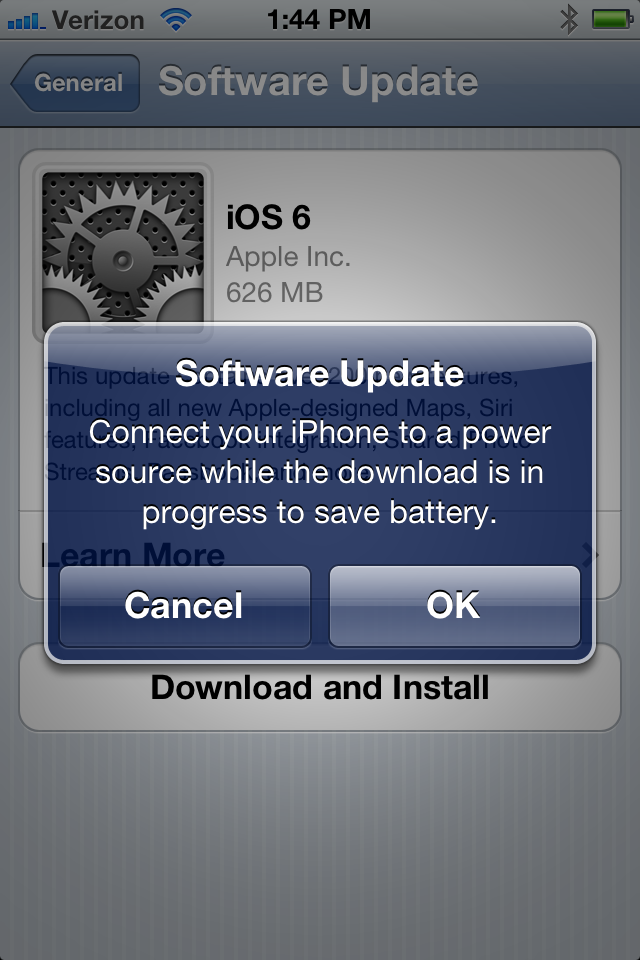
As I predicted at about 1pm I was able to download the new Iphone iOS this afternoon. After selecting "Settings", "General" and finally "Software Update" I was notified that iOS6 was indeed available.

Crossing my fingers I then selected "Download and Install".


I was glad to see that you are then reminded to plug your phone into a power source for the install, which I of course did.


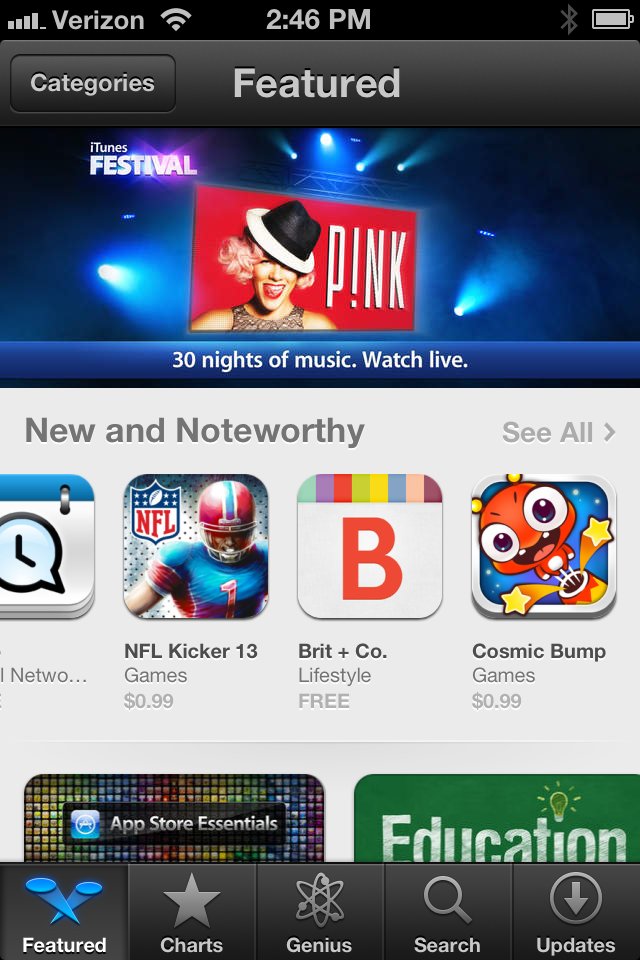
The update process took about 60 minutes. Your best bet during this upgrade is just to walk away and leave your iPhone in peace so it can get the job done. Once the update has been completed you will be prompted for some information. Simply select the defaults and move forward. Afterward you will be back at your main screen. You will see an additional icon on the screen, "Passbook". I have no experience with this new app but I will explore it soon. You will also notice that the iTunes store has been given a facelift.


I am sure there will be plenty of app updates in the next several weeks as app developers hustle to catch up with iOS6. Make sure you update your iPhone and iPad today.... and good luck.