Thursday, November 29, 2012

Extending Battery Life This Holiday Season

Many of us travel during the holidays. When we travel we take our mobile devices with us.  These devices have batteries that often simply can't keep up with our busy lives, especially during the holidays . Even if you give yourself plenty of time to make it to make it to your destination, there is not much you can do if your flight is delayed or if traffic is backed up. Not only will delays make you late, but they could also deplete the battery life of your phone and tablet. Luckily, there are a few things you can do to extend battery life and save power.

If your smartphone has a battery case available that adds extra battery life I would recommend one if you travel. Most of these cases have a connector that plugs directly into the phone’s charge port, which is how they deliver the power. These will often triple the life of your battery!

There are also external battery packs. These are usually very small and usually connect your mobile device with a USB cable. If your smartphone does not have a battery case accessory available these are your best bet. These battery cases are also great for tablets.

Saving your battery's charge can be as simple as tweaking some settings on your phone or tablet.  Here are some changes you can make to prolong battery life when traveling. Each smartphone will have slightly varied ways in which to make these changes but I trust you can figure it out!

Dim the screen: Most phones include an auto-brightness feature that automatically adjusts the screen's brightness to suit ambient lighting levels and system activity. This mode uses less power than constantly running your screen at full brightness would, but you'll get even better results by turning your screen's brightness down to the lowest setting that you can tolerate and leaving it there.

Adjust your screen timeout: When your device has been idle for a certain amount of time, the screen shuts off and goes back to black, thus reserving precious battery life for when you actually need to use it.

Turn off Wi-Fi: If you're not using Wi-Fi, turn it off. Same goes for Bluetooth.

Turn off, or limit, notifications:  These are the popup notifications from apps such as Facebook, Twitter, CNN etc.

Minimize unneeded apps and options: Speaking of apps, kill unnecessary apps that aren’t in use. Because our smartphones are excellent multitaskers, they tend to keep apps running in the background until they are forced closed. Apps are heavy energy consumers. Once again each smartphone will have different methods of doing this.

Turn on Airplane Mode: This disables all of the wireless features of your device, including cellular data, Wi-Fi, Bluetooth, GPS, and other location services. Therefor even if you are not flying and you want to simply save as much battery power as possible turning on this feature will help.

Turn off location services:  This will save a lot of power by disabling GPS services.

Turn off vibrate: Vibrating uses much more power than playing a ringtone does. It takes a lot of power to make your smartphone wiggle!

Tuesday, November 27, 2012

The Unofficial Return of the Windows 8 "Start" Button.

One of the biggest complaints so far about Windows 8 is the removal of the start button. This is the little Windows button on the bottom left of your Windows screen which launchs a menu listing the programs available on your computer. While I can understand Microsoft's desire to lure you into their new Metro interface the removal of the classic start button is a mystery to me. Microsoft had to know that several free add-ons making a start button available would be quickly released. After only a couple of weeks post Windows 8 launch several start button applications have indeed been made available (for free).

My favorite is, "Start Menu 8". The software is designed to be as flexible as you need when setting up your own personalized start menu. You could almost use Start Menu 8 as a complete fullscreen replacement for the desktop, though that is certainly not the intended purpose. Start Menu 8 includes a somewhat unique feature, in that it allows the computer to boot straight to the desktop to give the whole experience a feel that is much more like “traditional” Windows experiences. Microsoft probably really hates this as it allow you to avoid the Metro interface altogether on boot.


The design is such that you should never feel the need to use the Windows 8 Start screen at all. Your programs, settings, and folder system are all accessible here, as well as all the Control Panel features and screen controls. Of course, there’s nothing stopping you from using the Windows 8 Start screen and switching between the two experiences is pretty simple, which is what I reccomend. Pressing the Windows key on the keyboard will still return you to the new Windows 8 Start, which neatly allows you to emplore both experiences.

Start Menu 8 is available for free, but there are no shortage of hooks in the program to try and get you to upgrade to the pro version.

Wednesday, November 21, 2012

Not Just Yet Windows 8 Phone

Windows 8 Phone I Hardly Knew You
The Short Life of a Windows 8 Phone

I was able to get my hands on a Windows 8 Phone and 24 hours later I found myself going back to my iPhone5. Why? After all I have been following Microsoft closely for the past year and I really like their push towards a unified operating system across all platforms. I also believe that the new Windows 8 operating system brings innovation to a company that only a few years ago was staggering in respect to the mass consumer market. Microsoft, with their Windows line of software and Outlook products has a stranglehold on enterprise customers. This is not in doubt. However the mass consumer market has been flocking in droves to Apple and a lesser degree Android. Microsoft obviously has made a decision to get into the consumer market game and I believe that they are on the right track. However, and this pains me to say, the Windows 8 phone is not quite ready for prime time. My experience is with the HTC Windows Phone 8X.

The Good

The operating system is a great fresh design. In place of flat icons you get "live" tiles that display content like news, weather and photos. The navigation has a great ease to it and it look really really dynamic. Moving the tiles around and designing your layout is also very easy. The "store" is also nicely designed and the process of finding apps, downloading and installing is also well thought out.

Out of the box, Microsoft Office is built in and is easily linked to your Skydrive and Sharepoint accounts. The setup could not be any easier and the application use is mastered in minutes. This I will miss the most.

The Bad

The HTC Windows Phone 8X is limited to a built in 16GB with no expansion slot. That's right. No expansion slot. This shocks me. In today's consumer market these devices are used for music, video and more. After the 3GB of space needed for the OS (operating system) you are left with under 13GB. This is simply not enough for many users and this alone will deter many from switching to this device. I also discovered that most Windows 8 phones are limited to the 16GB storage.

I admit it. I love my apps. The Windows store has about 120,000 apps while Apple's store has over 700,000. This will surely improve over time as developers start to write applications for Windows 8. The success of the app store will also depend on the success of the Windows 8 phones. It's kind of a "Catch-22" for Microsoft. Why would a developer take time and money to design a Windows 8 app if the customer base remains small? While at the same time, most users will probably remain with Android & Apple simply because there are more things they can do with those phones as compared to the Windows 8 phones. Microsoft needs to intice these developers as much as possible to write applications for their platform if they want to succeed in the smartphone market. I am hoping for the best here because I really do want to see Microsoft succeed.

The music app is a bit too complex. Music apps should have an ease of use quality. This is simply because users are often physically involved in other activities such as walking, running or working out while listening to their music. The Windows 8 built in app (remember Zune anybody), although nice to look at requires much thought & action then it should.

The Future?

Windows 8 is not going anywhere and Microsoft is working hard to push this into the marketplace. However unless the Windows 8 phone can be improved soon it will be DOA before it has a chance to succeed. This would be very unfortunate as with RIM's demise there is a real opportunity and need for a reliable work and home smartphone platform, other then Apple & Android.

I have not given up. I will be keeping a close eye on the continued development of the Windows 8 phones. The app store must grow & additional memory storage must be available otherwise I fear for this very capable smartphone platform.

Friday, November 16, 2012

Microsoft's BIG Year - 2013

The year 2013 is really really important in respect to Microsoft's future. Here are some of the highlight's of what is happening in 2013 with Microsoft. Microsoft is obviously hoping that these new products will increase their presence in both our professional and personal lives.

Advertising

Microsoft's advertising campaign is actually catchy & fun which is something that Microsoft has always struggled with. Microsoft's new advertising campaign actually make me forget these 2 guys.


Windows 8

This new operating system which comes in various flavors will seemingly be everywhere next year. Windows 8 actually arrived in the last quarter of 2012. I have been using it for the past several months. This is a new and exciting operating system. Not since Windows 95 has Microsoft been this innovative. There will be surely be some push back from business. This is because it is so very different from prvious versions of Windows. However I believe it will actually be accepted in the business world much faster then Windows 7 was.

Windows 8 has 4 flavors. This will probably be somewhat confusing to the masses. This necessary due to the unique needs and abilities of each platform. However on the surface windows 8 will look and feel the same regardliess of the platform you are on.

Tablets


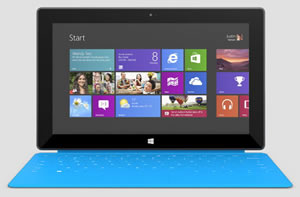
The Microsoft Surface is the first piece of actual hardware Microsoft has built on it's own. This is big news on it's own merit. I have not had a chance to actually use one of these yet and the reviews have been admittingly mixed. I believe that the mixed reviews are the result of the limitations of the "Windows RT" operating system. The RT version of Windows 8 is simular in nature as Apple's IPAD operating system. Users are restricted to the APP store for applications. The Surface does come with Microsoft Office loaded however there is no Outlook. This is also be dissapointing to many.

However by the end of the year other manufactorer's such as DELL and HP will be releasing their own Windows 8 tablets which will be running "Windows 8 Pro" as opposed to "RT". This is the same version of Windows that PC's will be running. This version of Windows provides the ability to install any application, from any source in addition to access to the APP store. These tablets will begin the merging of tablets and laptops for the first time. These next generation Windows 8 tablets are the ones which should find success and the ones I am most excitied about.

Smartphones


Windows 8 smartphones are about to hit the market. These smartphones have been receiving high praise from most in the tech world who have had a chance to use them. With RIM reeling, these Windows 8 phones will offer the professional a new opportunity to use a smartphone that has the fun factor while being a powerful work device. With Microsoft Office and SkyDrive built in working on the go will never be easier.

Microsoft Office 2013

Microsoft's newest version of Office will officially become available in early 2013. Their tablets and smartphones already have this built in. I have been using the "consomer preview" for months now. This new office is really a subscriber based solution with customers paying a small monthly fee for access. With your subscription, access to your files is available across all of these platforms. With SkyDrive access is available to your files on any PC, even without Office installed. Office 2013 also provides the ability to link social media servcies such as facebook, LinkedIn and Twitter to your account.

I may not be 100% accurate in my 2013 prediction for Microsoft but one thing is for certain. Next year will be a truly busy year for Microsoft and it will be fun to watch to see what happens and how successful Microsoft can be.

Tuesday, November 13, 2012

Name Change

The name of this fine blog has been changed to "West Chester Tech Blog". Just trying to keep things simple...

Tis' the Season for Email Scams

The holidays are almost here and sadly in the cyber world that means a new onslaught of potential computer risks to all of us. For example security researchers from Symantec are warning about a recently intercepted flood of Christmas themed malicious and fraudulent campaigns. Each year these malicious campaigns become more complex and dangerous. The recent campaign is an excellent example of this. Not only are the senders completely unknown by the recipients, but also, users are exposed to fraudulent e-shops for counterfeit shops.

Over the past year, there have been numerous attempts to entice users into clicking on links to fraudulent e-shops by impersonating a legitimate message or notification from respected, trusted and well known brands. These dangerous emails will without a doubt become more prevalent  as we get closer to the holidays.

As a result of these fraudulent emails I recommend common sense.  You should avoid clicking on links found in suspicious messages. Remember this lesson, "If it sounds to good to be true, it probably is".

Chase recently posted some examples of fraudulent email messages sent referring to their company. You can check them out here.

During the holiday season I will keep an eye on this situation and try to post updates when possible.

Monday, November 12, 2012

Windows 8 - First Thoughts


For the past few months I had been using the Windows 8 “Consumer Preview” on three computers. About 2 weeks ago I was finally able to move to the final release of Windows 8. I promised a review of my experience (so far) with the new Windows 8. Therefore here is a very early review of Windows 8.
First I must say that this rather lively desktop isn't just a rehash of Windows 7. It is a complete redesign by Microsoft. The icons in Windows 8 are live. What is very cool about this is that the new icons or rather tiles can display live information, like weather, email, calendar appointments and news.

Here's a look at some highlights that are different from Windows 7 and its earlier versions.  
 
The Animated Start Page

Most of Windows 8's widget-like tiles are live and animated. They are really self-updating widgets replacing the static icons we have been used to on a PC since its inception.

Click on the "Photos" tile on the Start page. Then add some photos by connecting to a social network or to Microsoft's SkyDrive cloud service. After a while, the pictures will appear and animate within the Photos tile on the Start page. I have actually has a little trouble with this feature but then again I have not worked with this particular feature much yet.

Follow the same concept to populate other tiles. For example, populate the Weather tile by clicking on it, and allowing Location Services at the prompt.

Software Is Replaced With Apps

Apps are the new applications, or what we used to call "software."
Click on the "Store" tile to launch the Store Spotlight. Scroll through the categories like Games and Productivity by placing the pointer at the bottom of the screen and clicking on the scroll-like navigation bar that appears.

Choose an app, like “Ebay” or “USA Today” by clicking on it and selecting Install. The install process will commence. Afterward the new tile appears on your desktop. These installs usually take less than 2 minutes or so.

SkyDrive Storage

Microsoft's Dropbox is tightly integrated into Windows 8. SkyDrive provides 7 GB of free storage. Drag some files into the SkyDrive folder on the computer, and they will sync on the Windows 8 computer. As with Dropbox and others, there are SkyDrive apps for mobile devices too. Therefore your files can be anywhere you need them, as long as you have the app installed.

Internet Explorer 10
Unlike previous versions of internet explorer IE 10 strives to use all of you monitors real-estate.  By default this new internet explorer runs in full screen. The interface here has changed from previous versions so it will take a little practice to master how things work. Don’t be afraid because if you take a little time here you will grow to love IE 10.

You can save your favorite webpages to your new beautiful desktop by browsing to the web page and selecting the Pin to Start.

The page will then become accessible from the Start page. Some sites create a live notification when updates are available.

Organizing and Touch

This OS has been designed for touch in much the same way as smartphone and tablet are used.
You need a new, multi-touch compatible computer to take advantage of this. If you don’t have one yet, don’t feel left out because a mouse works just fine.

Navigation Tips

Say goodbye to the Start button. On touch computers, swiping in from the left changes apps. Swiping in from the right returns you to the Start screen; swiping in from the bottom displays navigation functions; and pinching and stretching will zoom.
These concepts work with a mouse too. Try some of this navigation by clicking on the Internet Explorer tile. Then move the mouse pointer to the top of the screen until the pointer morphs into a hand icon.

Most of the controls you will need such “pc settings”, “control panel”, “user settings”, “device management” and more can be found in the new “charm ribbon”. You can easily access this by taking your mouse to the lower (or upper) right corner of your monitor and simply hovering it there. The “charm ribbon” will then appear. (pictured left)

Press the left mouse button and drag the Internet Explorer page to the bottom of the screen with the mouse. The screen will be returned to the Start page.
Click in the top left corner within an app screen to see recent apps. Drag one of those apps to a spot on the screen until a space appears. Release the mouse button and both apps will share the screen.


I am still learning more myself with this new excellent operating system and cannot wait to try it out on a new Windows 8 tablet. However do not rush out just yet and purchase one. I will explain more later….

Wednesday, October 31, 2012

Powering Your Smatphones When the Lights Go Out

Hurricane Sandy just passed through our region and I am thankful that we in the West Chester area dodged a major weather bullet. However our neighbors in New Jersey and New York were not so lucky. Millions are without power. I have been watching the new ABC series "Revolution" which describes a world where the power goes out... for good. This is very scary, especially because we all rely on power for everything. We especially depend on our smartphones. These little devices we all seem to be carrying with us are after all really just little computers.


As a matter of fact a professor of mine, Dr. Alan Shark started off a CIO (Chief Information Officer) course I was taking by holding up his smartphone and stating, "These are not phones, they are now computers with phones Apps". He was so right and his remark really struck me.

There is some good information here if I don't say so myself. For example did you know that text messages take way less power then talking.

Anyway try to follow these tips the next time the lights go out. Which I hope is not for a long time.

1. Fully charge your laptop, and save that charge for your phone.
It’s easy to forget that our phones charge when they are plugged into our laptops via the USB port. This works even when your laptop is not connected to a power outlet. To get the most out of this trick, restart your laptop to kill all running applications and processes, dim the screen to nothing, and don’t use it for any other purpose. Just plug your phone in when the phone gets low on charge and allow it to drain your laptop’s (much larger) battery.

2. When the power goes out, turn off all the radios on your phone you’re not using. (WiFi & Bluetooth)
Your phone’s radios are the major drain on battery life. If you want to leave the phone connected to the cell network in case of emergency text turning off WiFi will preserve battery life, as will turning off the Bluetooth radio.

3. Keep your phone plugged into a charger until the power goes out.
No explanation needed here friends.

4. Turn off all “push” notifications on your phone.
News services and various apps send you “push” notifications that require your phone to power up just a bit in order to receive data from a remote location.

5. Restart your phone to kill all the apps that are running now.
This will assure that no unnecessary apps are running in the background, draining power by making the phone’s microprocessor do extra work.

6. Turn down the brightness on your screen.
Displays on phones are the other major battery hog. Turn down the display to the lowest level at which you can still read it.

7. Send text messages instead of making phone calls.
Text messages are tiny amounts of data, sent quickly, and do not tax your phone’s batteries the way a phone conversation does. Plus, texts are more likely to get through when the cell network is overwhelmed.

8. Borrow a cell phone car charger.
Sure, if you have a car, you should already own one of these items, but in a pinch, maybe your neighbor has one.

9. Do not use your phone.
This may seem obvious, but it’s easy to forget. When the power goes out keeping your phone available for emergencies is more important to updating your friends on Facebook or Twitter.

Friday, October 26, 2012

4 Computer Security Risks


Computer security is a big issue for the average computer user. But what about the security threats that are not so obvious? Here are  4 common computer security risks you should be aware of.

Take some time to think about these risks and protect your personal information.
 
Discarded Computers
People give away computers or simply send them to the dump for disposal. My friend buys old discarded computers from the DUMP store and many a time the Pcs are still full of data and personal information.
Here is what you might find on a discarded computer:

1. Sometimes there is still entire email accounts setup in email software on these computers. Simply logging onto the internet will allow you to download new emails. Wow. This means you can easily get emails to reset passwords too.
2. Personal photos and documents. Don’t know about you but I would not like a complete stranger to be viewing my personal files and photos.

3. Saved login details. For example you might have your password saved to login into your Facebook account. Bang, auto login is such a breeze!

4. Evidence of a crime. It might not be that serious but the person that gets hold of your computer could blackmail you by threatening public exposure of whatever they have discovered.

Your Own Children
Kids are natural born computer geniuses compared to most adults. Even a 5 year old is technology wise and needs to be treated as an experienced computer user.

Children are fantastic at learning what they need and altering parental controls on a computer is often an easy task, easier than it was for the adult to set them in the first place.
When children get free run on a computer they can get into all sorts of mischief. They might change the settings on the computer, use the computer for banned activities, or maybe crash the computer altogether.

The best and only way to supervise a child on a computer is to place your computer in a public area in your house and personally watch their computer time.
Fake Emails

Everyone or most people now are very aware of the risk of fake emails. These are called phishing attacks and they are emails that claim they are from a reputable company when they actually are not.
Some of these emails are obvious while other emails are professionally crafted. You might get an email saying your Ebay account has been suspended or your Paypal account has been compromised. These are the most common examples of security risks.

The best way to protect you and your computer from these emails is to never click a link from inside an email. Always go to your web browser and type in the address of the website to see if the email is in fact genuine.
Fake FREE Software

Everyone loves free stuff, especially computer software.

Here are some precautions to take:

1. Read online reviews before trying software. What’s the rush?
2. Ask yourself, do you really need this software? Will it be installed on your computer and just take up space and simply slow your computer down?

3. Download free software from sites you trust. For example I only download Microsoft freebies from the Microsoft website. This software is often repackaged with malware and spyware, so the only safe way to download is to go to the source.
4. After downloading, take the time to scan executable software with your virus scanner before installing on your computer.

Thursday, October 25, 2012

Windows 8 is Launched

Microsoft Thursday launched Windows 8, the latest version of its operating system, a version it hopes will be modern enough to keep existing users and draw new ones to it.

Steven Sinofsky, president of Windows revealed that Windows 7, the prior version of Microsoft's desktop operating system, has sold more than 670 million licenses. Yes, over 670,000,000 copies of Windows 7 are out there in the world, on people's computers. This is amazing to me because so many people are still using Windows XP, perhaps the most successful operating system ever created by Microsoft. However we really do have to move on from XP and so this just may be the perfect time.

Windows 8 uses Windows 7 as its foundation, so naturally there are high expectations. That is because that although many people have not upgraded from XP those of us who have been using Windows 7  have been very happy with it. The new Windows 8 operating system has undergone more than 1,240,000,000 hours of testing, according to Sinofsky. That's a lot of work!

I was able to watch the stream of Windows 8 and was very interested in what would be said by Sinofsky. You must also realize I am an early adopter in almost everything I do and I have been using Windows 8 on several of my computers for months now.

Sinofsky referenced the days when we were basically "living in caves," the time of Windows 95. At least he did not go way back to our Windows 3.1 days! He used memories of the Windows 95 era to emphasize just how far Microsoft's operating system has come. Now, more than 1,000 PCs have been certified for Windows 8, bringing on what the folks at Microsoft describe as a new era of computing (and of Windows).

Sinofsky did at one point acknowledge that some folks might call out Microsoft's newly launched app store for having a small selection of apps, in comparison to what is available on other platforms, such as Apple and Google. This is true. There are not many apps in the store but hey it is only a few days old and only now is it "live". The app inventory will no doubt grow quickly. I have already seen evidence to this.


You can see by my screen shot Windows 8 is a very different animal then anything Microsoft has done before. Although there are 3 variants of Windows 8, (smartphones, tablets & computers) they are each basically the same, with the same interface. However Microsoft is taking some heat due to the fact that apps for example you may install on your smartphone or tablet will not work on your PC.

Working in the Windows 8 new environment is not nearly as cumbersome as some have suggested. However if you have patience that will help, at least in the beginning. Working with Windows 8 on your tablet or smartphone is reportedly really cool, although this I have not experience yet. On a touch screen you manipulate the work area by touch and just as you do on tables and smart phones.

I am preparing a complete review of Windows 8 so stay tuned.

Wednesday, October 17, 2012

Windows 8 Launch Nears

Although I have been out of town I have not be out of touch with technology news these past few days. Microsoft was apparently not deterred by my vacation and their company continues marching towards 2013 which is set to be one of their most exciting years in more then a decade.

Windows 8 RTM was just released to VLK and MAK customers which is good news because it provided me with some time to install the full version on both my home office PC and HP Ultrabook Folio 13. I had been using the "consumer preview" for the past few months now but I was very eager to see what the final release looked and performed like.


For the consumer market Windows 8 will be released on October 25, 2012.

Microsoft has just sent out invites to a Windows 8 event in New York City for that Thursday. The event starts at 10 a.m. (EDT), and also includes a Surface tablet announcement. The Surface Table promises to finally provide a true competitor to Apple's IPAD.

Windows 8, Microsoft's make it or break it operating system, is set to go public on October 26.

Microsoft had said the Surface tablet will go on sale the same day as Windows 8, meaning there will be a dual launch on October, 26.

Some Microsoft pop-up stores will spring up at the midnight hour to start selling the tab, while other Microsoft Stores will open their doors to the slate during normal business hours. I am disappointed to say that there are none of these stores in the Philadelphia area.

Pricing
The Surface tablet which is being built my Microsoft will initially only be available directly through Microsoft either at one of their new stores or on their webpage and is listed at $499 (16GB) through $699 (64GB).

Windows 8 pricing is a little more complicated. Windows XP and Windows 7 customers will probably be able to upgrade their computers for less then $40 while new customers may expect to may close to $70. This price point is big change from what we have experienced in the past and most purchases will be direct downloads. The age of media is coming to an end friends.

I will be writing a detailed article regarding my experience with Windows 8 very shortly and I hope to get my grubby hands on a Surface in the near future as well.

Tuesday, October 9, 2012

WIndows 9 before Windows 8?

Tech Bloggers I will be out of town for a few days so this will be my last article until late next week, unless of course if some breaking news in the world of tech grabs my attention.

Do you ever think that technology is moving way to fast for you? For example by the time you get your new 55" Samsung LED in your family room and setup it up it will have already been replaced with a new more superior model. This sadly happened to me only a couple of years ago. And to make matters worse no matter how much I try to explain that it has been replaced with a bigger-better model the wife simply will not improve it's replacement! There is not much any of us can really do about this and in fact some news I just heard about Microsoft only reinforces this situation. Every regular reader of this tech blog knows that I am looking forward to "Windows 8" which has not even officially hit the market yet. Windows 8 which will bring big changes to how we used our computers is apparently already "old news". I have been using the "Consumer Preview" of Windows 8 for about 4 months now and must say that it will turn some heads, drive some people crazy but I really-really like it.

According to several "insider" reports, Microsoft executives confirmed on October 3, 2012 that the company has begun to develop the next generation Windows 9 operating system.

Yes you heard me correctly. Microsoft's "new" Windows 8 operating system will be on sale later this month, but the company has already started the development of their next-generation operating system. Although there is no official news, apparently Windows 9 will be the next major project that the company will release.

Interestingly, sources said that Microsoft is developing what they are calling Windows Blue, a very different Windows follow-up system from Windows 8.

Microsoft has obviously learned from Apple that to remain relevant, new and interesting updates are required in order to survive today if you are in the business of technology.

Monday, October 8, 2012

Learning To Use SkyDrive

It's become incredibly easy and often required to compute while on the road. Our laptops, tablets and smartphones offer many productivity functions. These enhanced mobile devices in addition to the expanding 4G cellular networks is making it easier then ever before to work with our documents and data stored in the cloud.

Between Dropbox, Google Docs, Microsoft SkyDrive, Apple iCloud, and other services, a expanding options of cloud-based storage options are competing to provide you access to your documents, photos, and other data from all your different devices. Although not quite as popular as Dropbox (which has been around for years) or iCloud (which has a big built-in user base), Microsoft’s SkyDrive is poised to make a big splash when Windows 8 officially launches in October. The Windows 8 SkyDrive app is prominently displayed on the Windows Store, and Windows Phone 8 is expected to seamlessly integrate your SkyDrive account with your smartphone.

But you don't need to wait for Windows 8 to start taking advantage of SkyDrive. This is becuase SkyDrive apps are already available for just about every major computing platform. If an app isn’t available for your operating system of choice, files stored in your SkyDrive folders are still accessible via a Web browser. In this guide, I will show you how to set up SkyDrive on your PC, how to access your SkyDrive account from different devices, and how to use a few tips and tricks to get the most from this free service.

How to get started with SkyDrive
With Windows 8, SkyDrive is installed by default with the OS and is available on the Start screen as soon as you boot up your PC. If you prefer to stay in Desktop mode while using your Windows 8 PC, you'll need to install the stand-alone SkyDrive application. (Using SkyDrive on any platform that doesn't run Windows 8 also requires the installation of this stand-alone app.)

To install the SkyDrive application on a desktop PC, simply open the SkyDrive homepage in your browser of choice and click on the Get SkyDrive button. The installation process is pretty simple: If you’re running Windows, you need to click the Download SkyDrive For Windows button and save the file to your system. If you’re running Mac OS X, click on the Mac OS X link in the text at the top of the page and then click on the Download button on the subsequent page.

Once the download is complete, simply double-click on the downloaded file to launch the SkyDrive installer. Follow the on-screen prompts to complete the installation; when you're ready to configure your SkyDrive account, go ahead and launch the program. The first time you launch the SkyDrive app, you’ll be asked to sign in to a Microsoft account. If you don’t have one, you'll see a link to sign up for free; go ahead and set one up now, since you'll need it if you ever install Windows 8. Sign into SkyDrive, and a group of folders will be created on your system—any time a file is placed into one of these folders, it will automatically be synced to Microsoft’s servers, provided an active Internet connection is available.

SkyDrive offers users 7GB of storage space for free; you just need to download the app and sign up for a Microsoft account. If you want (or need) more space, Microsoft offers different levels of additional storage for an annual fee. At this writing, 20GB of space is available for $10, 50GB for $25, and 100GB for $50, annually.

If you want to access data stored in your SkyDrive account on your tablet or smartphone, the free SkyDrive app is available for download in almost every platform's respective app store. SkyDrive is available in the iTunes store for iOS-based devices, in the Google Play Store for Android-based devices, and in the Windows Phone Marketplace for Windows Phones.

Accessing Your SkyDrive

Now that you've set up a SkyDrive account, actually using the service is simple. If you're running Windows Vista, Windows 7, or Windows 8, your SkyDrive folder will appear in File Explorer; on Macintosh systems, they’ll appear in the Finder. By default, inside the parent SkyDrive folder, the app creates three more folders—Documents, Pictures, and Public.

Anything placed into these folders will automatically be synched to Microsoft’s servers when a connection to the Internet is available and the SkyDrive app is running (it runs automatically with the OS). When a file is dragged into one of these folders, the SkyDrive icon in the system tray will report the status of the synchronization process and report “SkyDrive – Up to date” when the sync is complete. Once the sync is finished, the files are stored on Microsoft’s servers and will be available to other devices.

Using SkyDrive on mobile devices like smartphones and tablets is equally simple. Once you have the app downloaded and installed, a SkyDrive icon will be available in your list of applications. Open the app, sign in, and your SkyDrive folders will be listed along with some details regarding their content.


If they don't have a device that has a Skydrive app, they can use a browser to view their SkyDrive storage. Accessing your SkyDrive folders from a Web browser doesn’t require any local files to be installed, which saves you the hassle of setting up the app on a PC over which you don't have full control. Provided you’re using a modern browser, navigate to http://skydrive.live.com/, sign in, and your SkyDrive folders will be accessible right from the browser window. Keep in mind that you’re not only able to download files from your SkyDrive, but to upload files to it as well. Dragging a file (or files) from a PC into one of the SkyDrive folders in the browser window will automatically upload that file so it will be accessible from your other devices—a great way to quickly save photos and documents from a friend's or coworker's PC so you can look them over later at your leisure.

Data storage in the cloud is only going to become more important to all of us as we are expected to "work on the run". The mobile devices we use are being built with this ability in mind. Becuase of SkyDrive's easy integration with Windows I believe it's popularity will only grow. Check it out today.

Friday, October 5, 2012

Going Paperless at B&N

OK today I ran into another example of technology moving forward even if some of us want to put our heads in the sand. Earlier this afternoon I stopped by Barnes & Noble to look for a book to read during my upcoming vacation. Just to satisfy everyone's curiosity I picked up "The Lost Citz of Z" by David Grann. Anyway back to my article. At the counter I paid the cashier and she asked, "Would you like your receipt printed or emailed to you?" "Wow" I said, "is this something new?". She responded, "Yes, that Barnes & Noble just started offering the option". I know it may be a little scary, but being the tech guy that I am I of course said "yes".

After getting in my car, and before starting the engine I checked my email on my iPhone. I was impressed! There in my email was the Barnes & Noble receipt from my purchase only minutes ago.

I am a Barnes & Noble member so I did not even have to provide the cashier my email address. Isn't technology wonderful? I truly hope that this option starts spreading through the retail market.

Just maybe we will someday truly get to paperless society!